
- Physical Card Setup Tutorial -
iPhone iOS system
- Illustrated Explanation -
【1. Delete the profile】
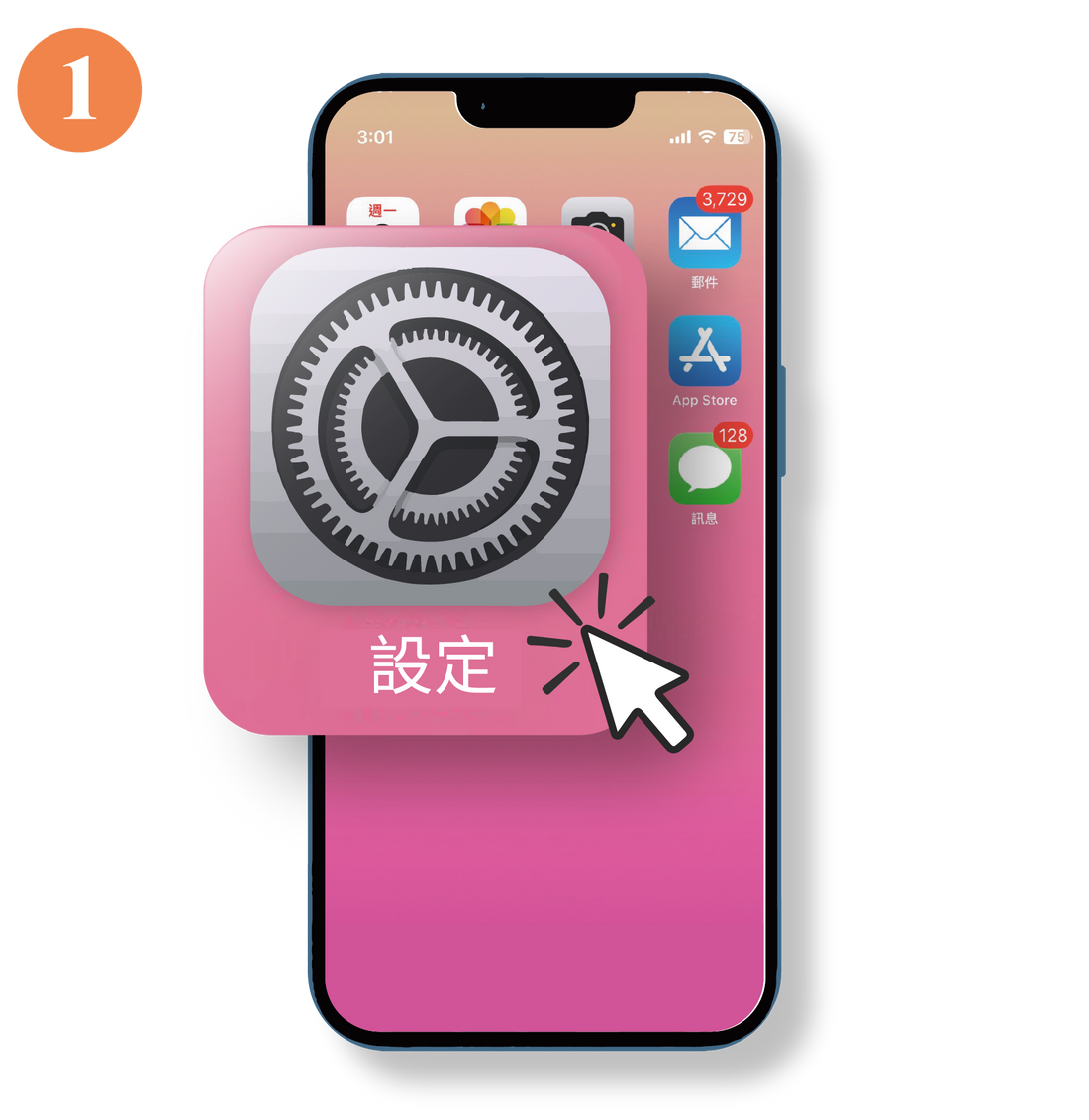
Select " Settings "
Sample version: iOS 17.6.1
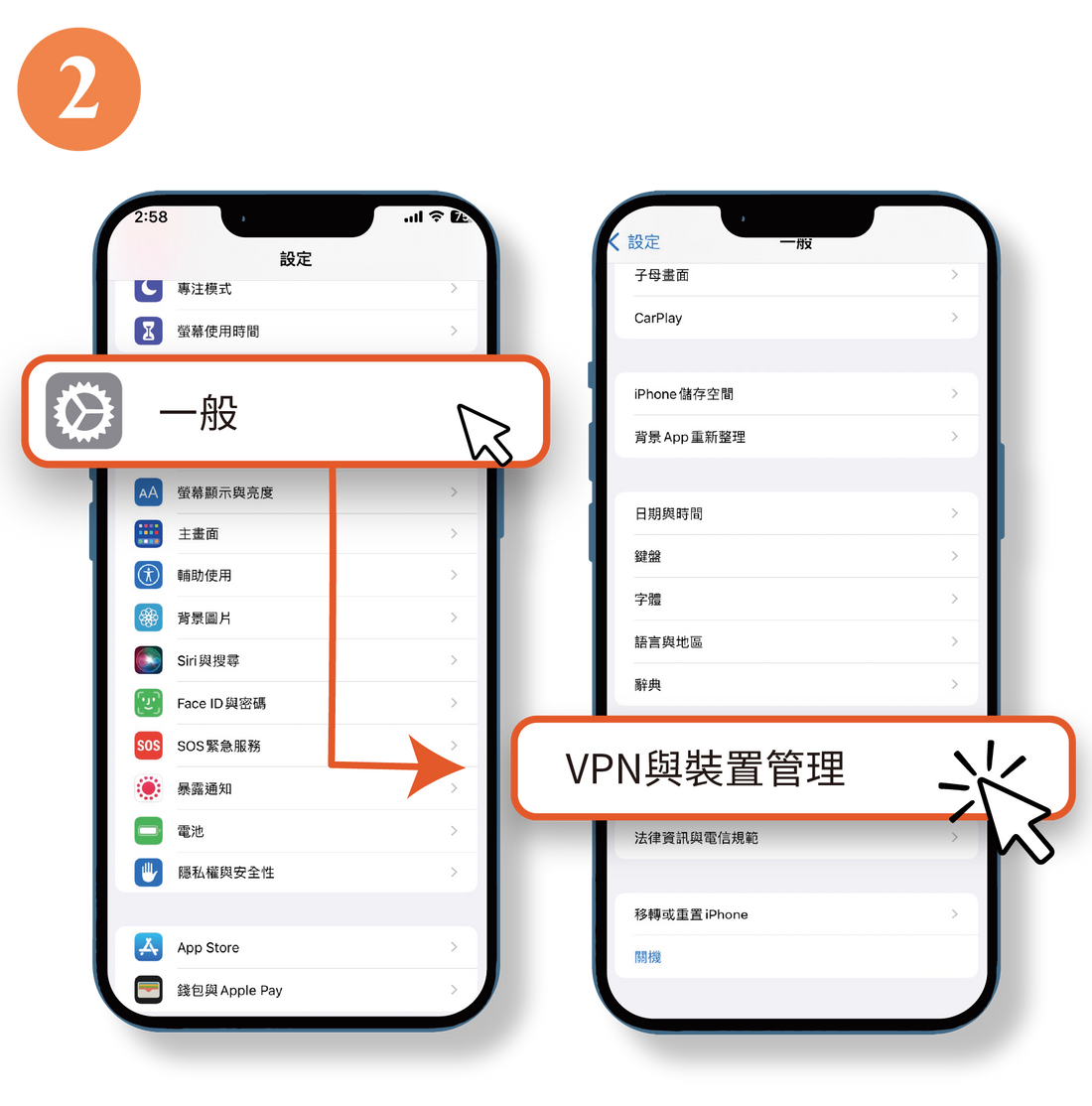
Select " General " >
Select " VPN & Device Management "
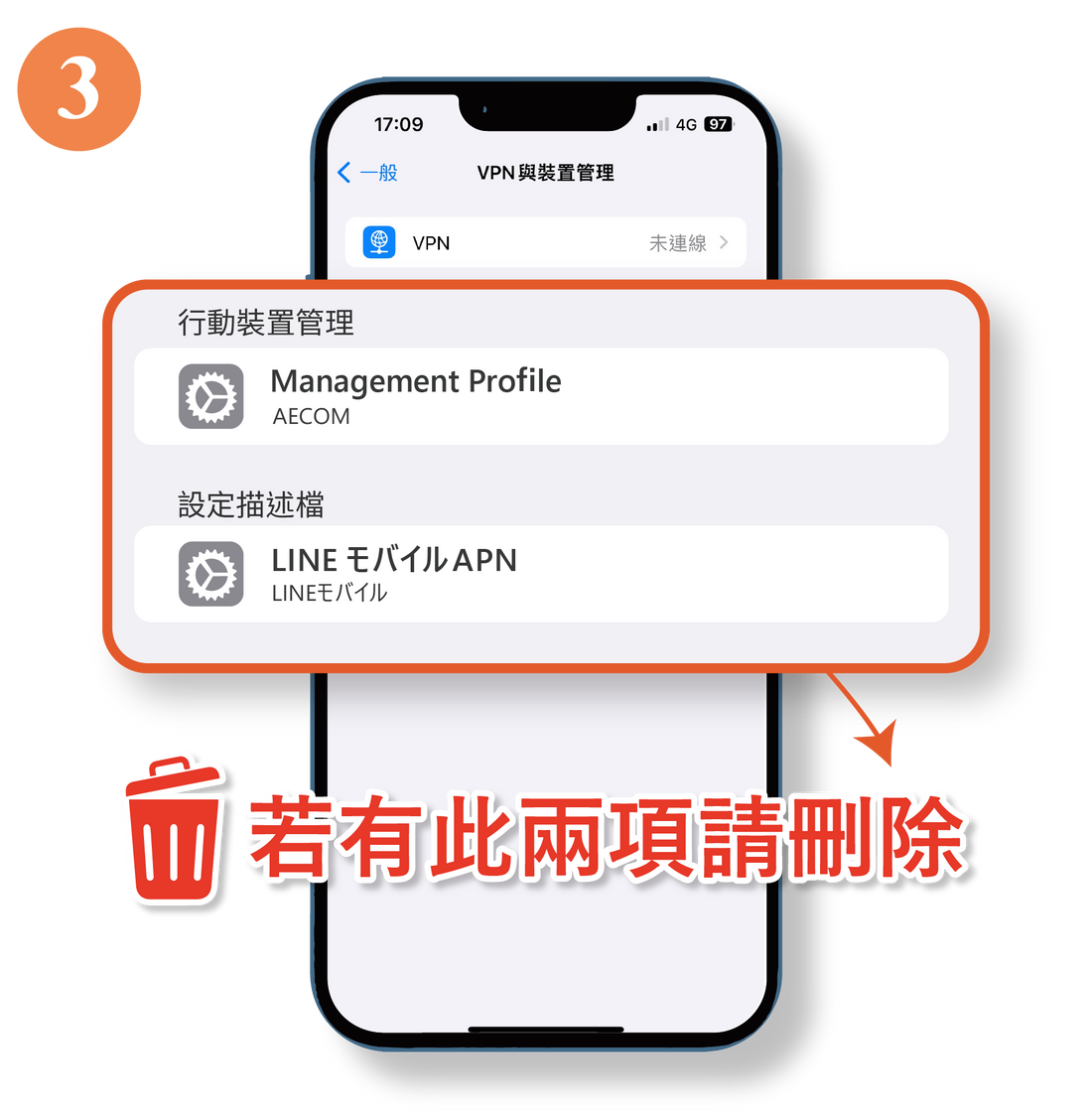
If there are " Profiles " and " Mobile Device Management " options...
Please delete both items.
💡If not, please skip to the next step.
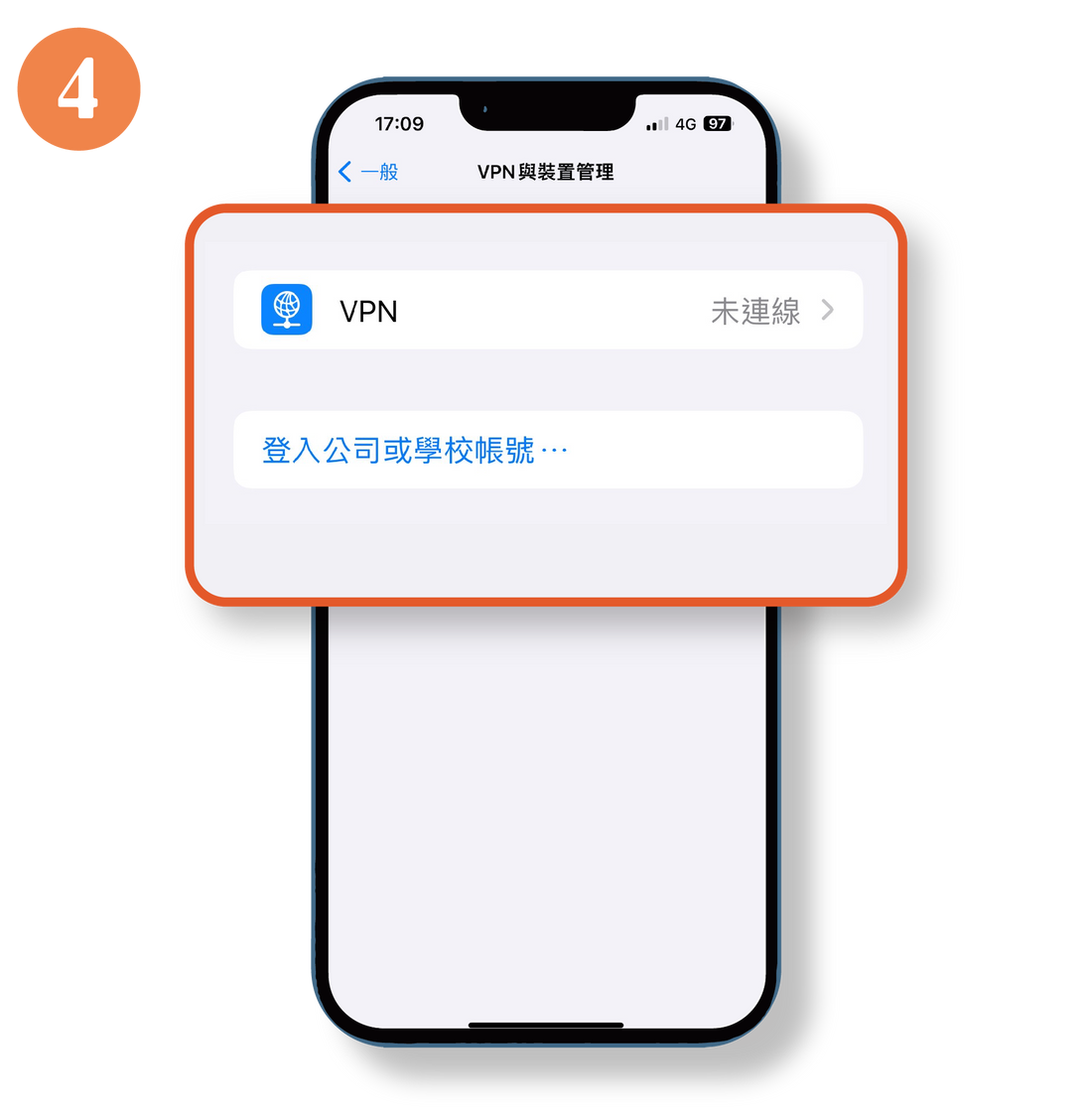
Both of these options delete the displayed content.
【 2. Turn on the network 】
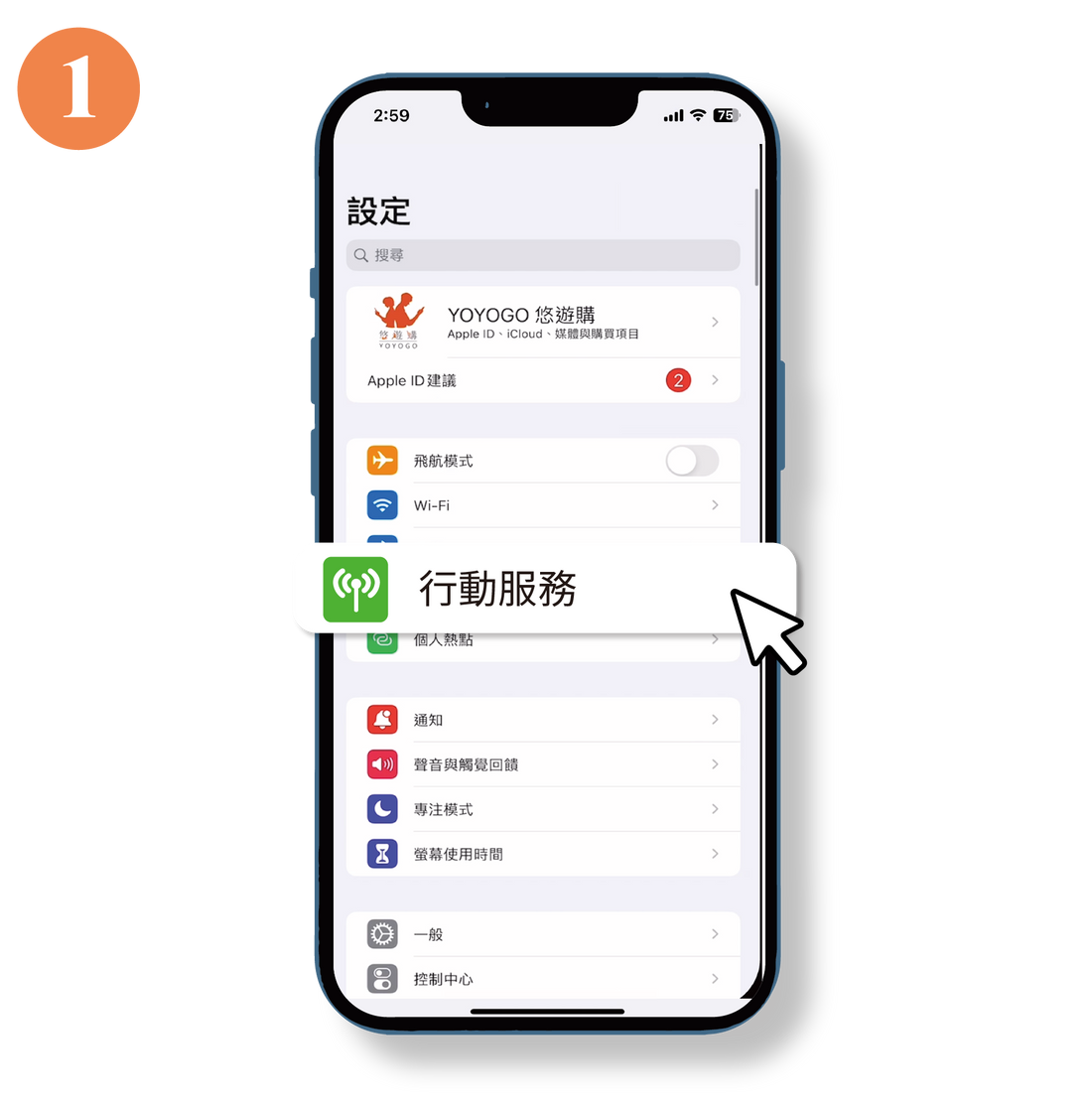
Select " Settings " >
Select " Mobile Services "
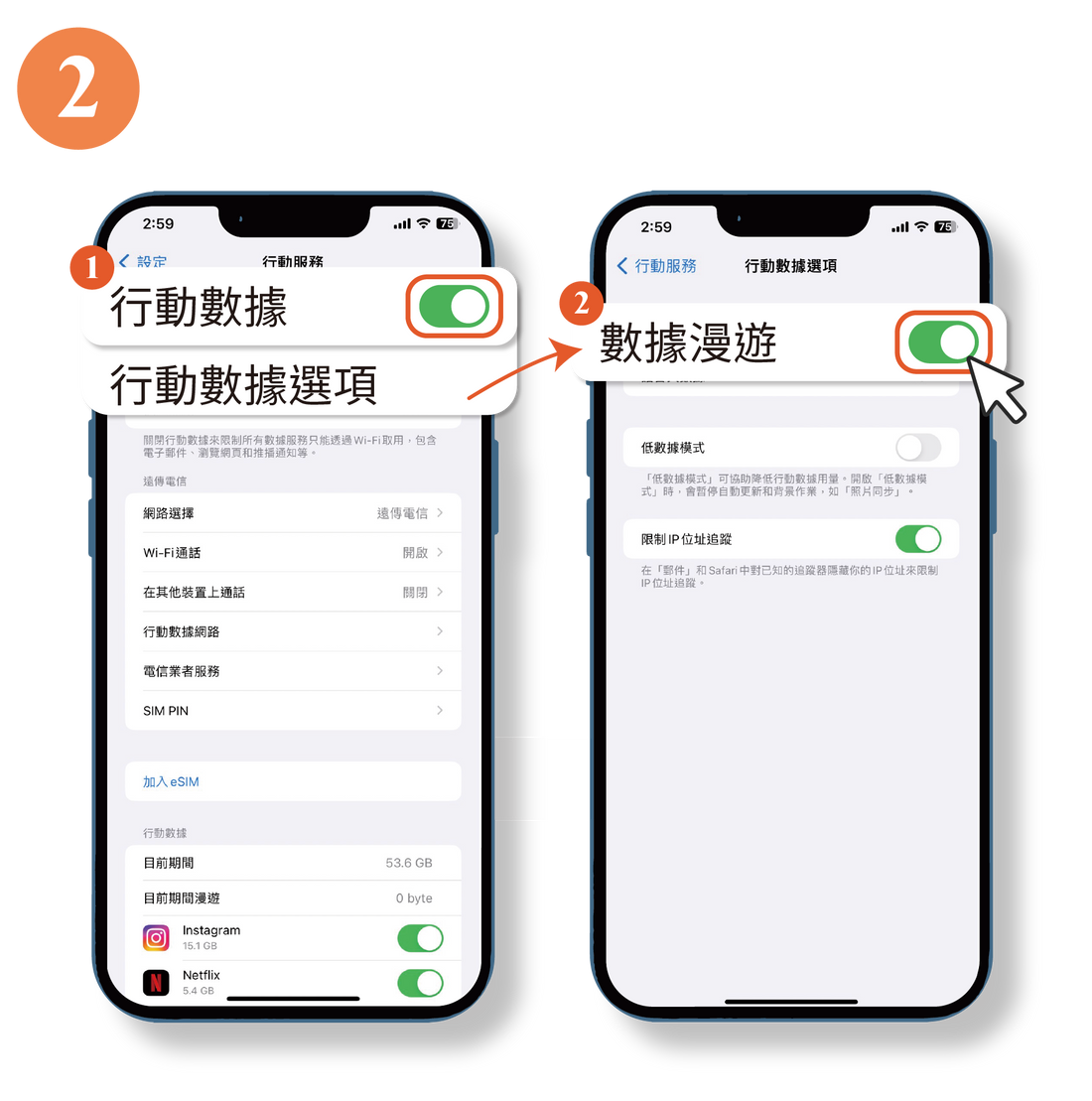
Enable " Mobile Data " >
Select " Motion Data Options " >
Enable " Data Roaming "
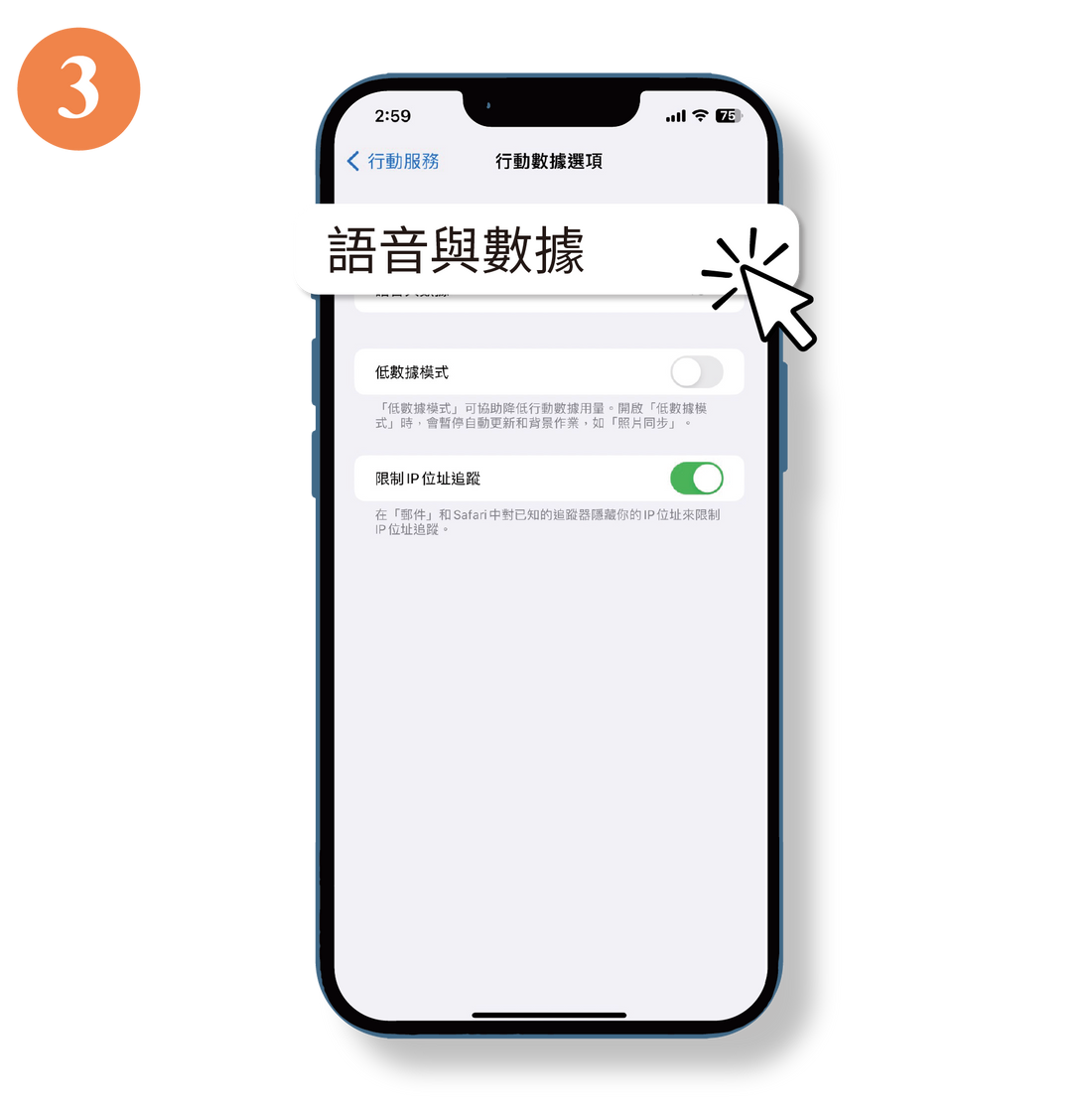
Select " Voice and Data "
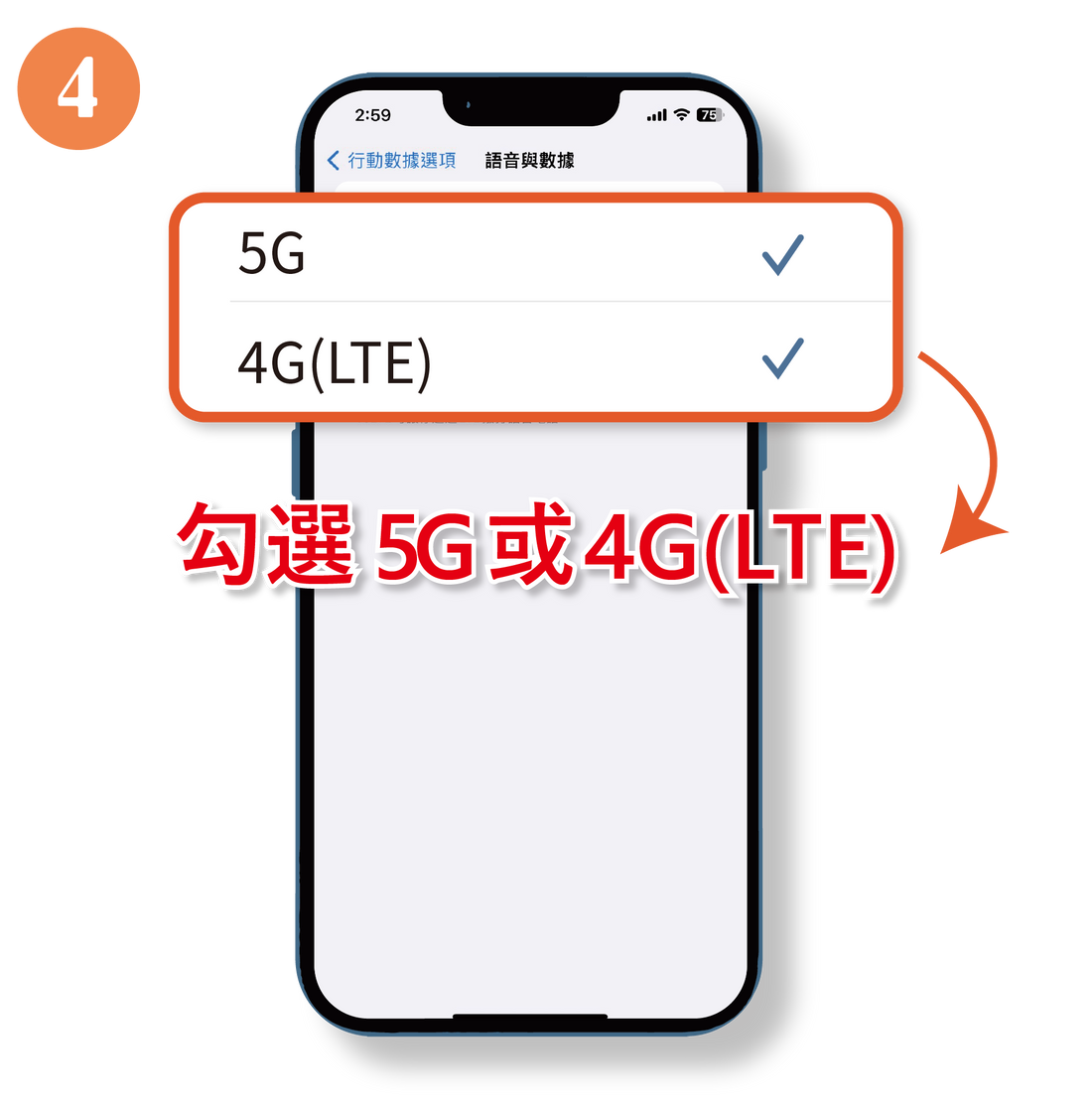
Choose 5G / 4G ( LTE )
💡 After this step is completed, your phone will automatically connect to the internet.
If the connection fails to connect automatically, proceed to the next step 👇
【3. APN Settings】
⚠️If you have already successfully connected to the internet, you can skip this step.
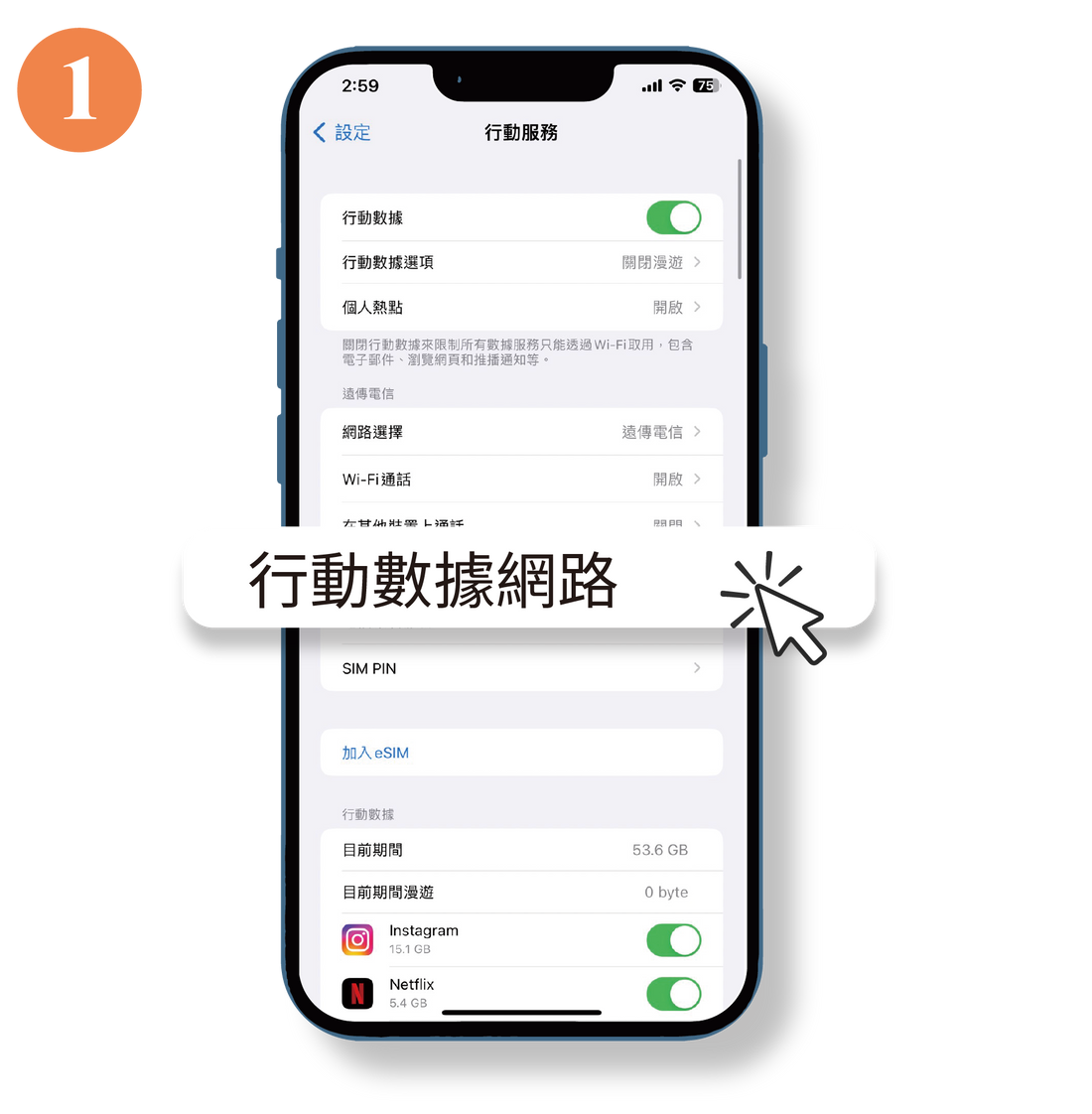
Select " Mobile Data Network "
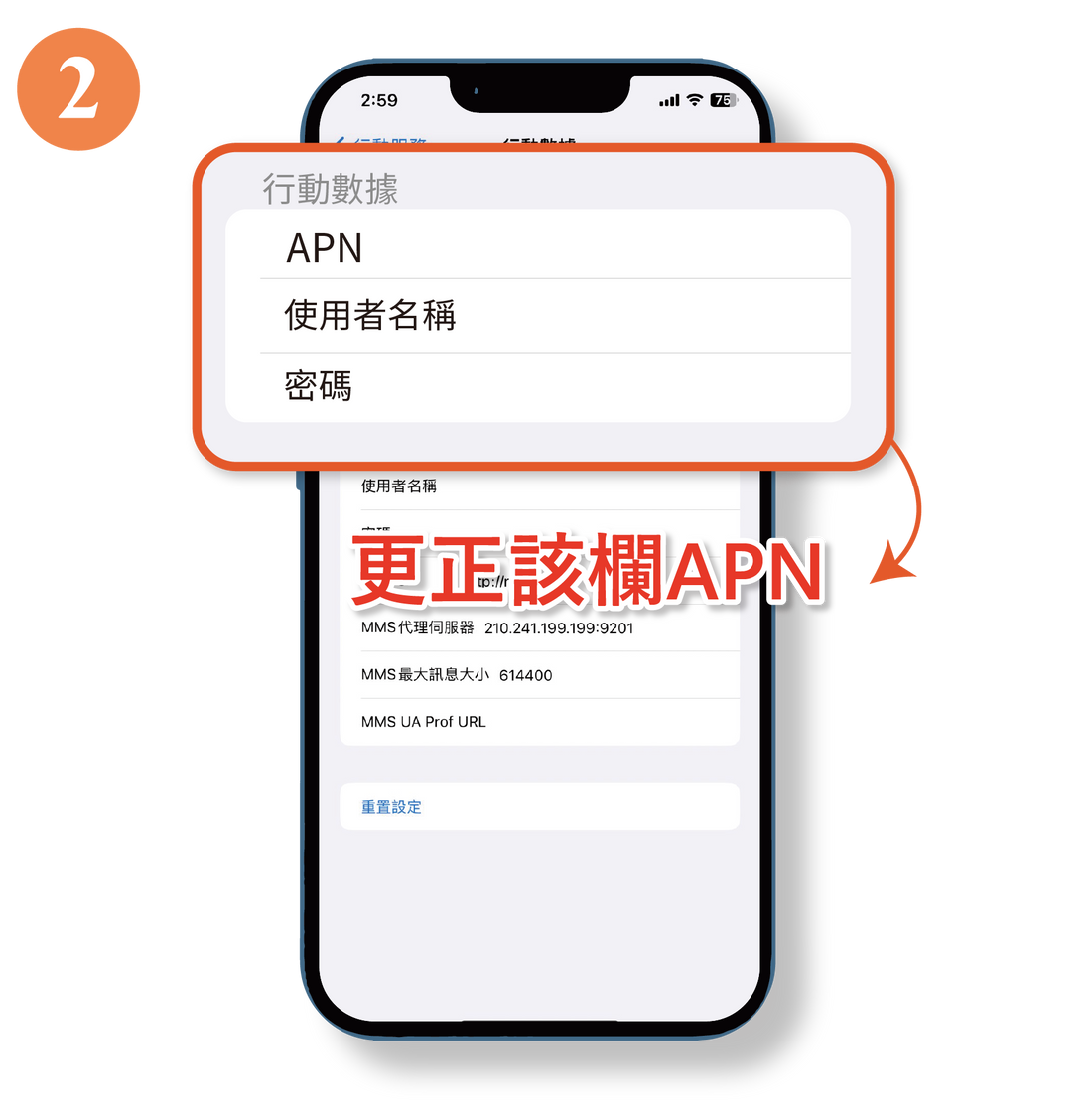
Modify the action data " APN "
Please leave the username and password fields blank.
Only fill in the blank if there is a sticker on the packaging.
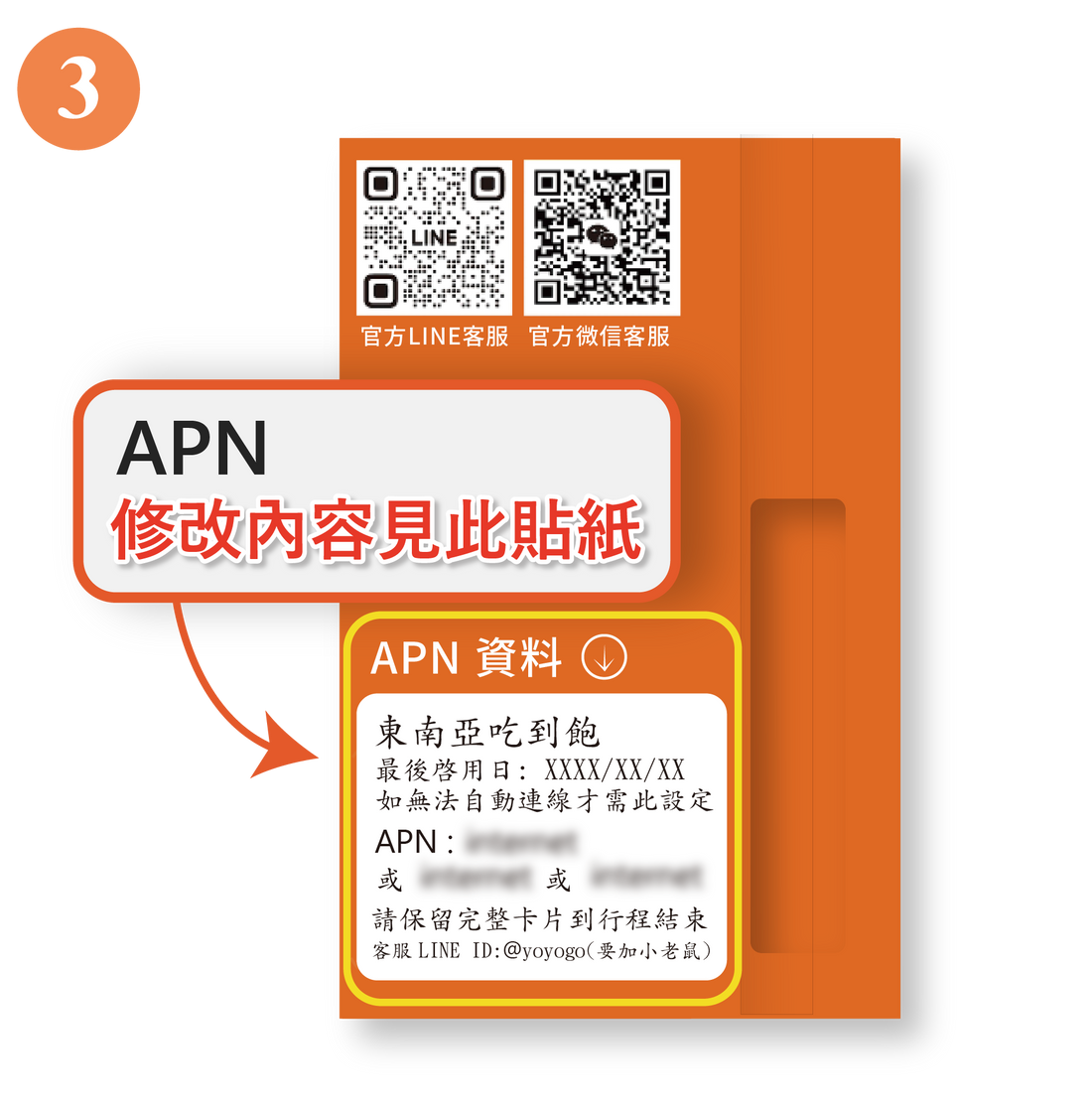
For details of the APN modifications, please refer to the packaging sticker.
⚠️The edits shown in the image are in this sticker.
Non-APN input content

Please contact our specialist if you have any questions.